This is the current authoring guide for this blog. It shows the writing features that are wired into the repo today: Markdown, MDX components, reference links, citations, footnotes, code block annotations, images, Mermaid diagrams, curated post lists, and generated downloads.
If you want the older markdown-first version, the repository still includes one. It is useful for historical context, but this article is the better starting point for the current MDX workflow.
Use this jump link when you only need the validation commands and helper scripts.
Table of contents
Open Table of contents
- Frontmatter
- Basic markdown syntax
- Links, cites, and footnotes
- Code blocks
- Images
- Image comparisons
- Mermaid diagrams
- Vega-Lite graphs
- Collapsible sections
- Tab groups
- Listing specific posts
- LaTeX and Typst equations
- Checks and helper scripts
- Quick Troubleshooting Checklist
- Generated Markdown, Typst, PDF, and EPUB
- References
Frontmatter
Every post starts with YAML frontmatter between --- lines. The schema in the app requires title, description, pubDateTime, and headerImage; everything else is optional or has a default value.1.
---
author: Your Name
pubDateTime: 2026-03-23T12:00:00Z
modDateTime: 2026-03-23T12:30:00Z
title: Example guide post
headerImage: "@/assets/images/GpuHelpLogo.png"
showHeaderImage: true
featured: false
draft: false
tags:
  - docs
description: A short summary used in lists, cards, and metadata.
canonicalUrl: https://example.com/posts/example-guide
hideEditPost: false
hideFromSearch: false
externalLinks:
  - link: https://example.com/demo
    label: Demo
headerVideo: https://www.youtube.com/watch?v=dQw4w9WgXcQ
timezone: Europe/London
bibliographyData: |
  @online{astriFeatures
  }
---content/src/data/blog/example-guide.mdx
Basic markdown syntax
The repo uses normal GitHub-flavored Markdown plus MDX. If you already know the basics from Markdown Guide [1], most of your writing will feel familiar.
## A section heading

This is a paragraph with **bold text**, *italic text*, and `inline code`.

> A blockquote is useful for notes and warnings.

- Unordered lists work well for quick points.
- Tables work well for comparisons.

| Format | Good for |
| ------ | -------- |
| Lists  | steps |
| Tables | comparisons |
Rendered examples.
A blockquote is useful for notes and warnings.
- Unordered lists work well for quick points.
- Tables work well for comparisons.
| Format | Good for |
|---|---|
| Lists | Steps |
| Tables | Comparisons |
Links, cites, and footnotes
This blog uses reference links instead of inline markdown links. External links can produce citations automatically, while self links intentionally stay citation-free.
An external link example looks like this: Astro MDX features [2].
A self link inside the same article looks like this: go back to the checks section. It stays a normal internal jump with no bibliography entry.
You can also cite without showing a link at all, like this: [1].
Footnotes are supported too.2 In this repo, footnote ids must start with note:.
Read [Astro MDX features][ref_astro_mdx].
Jump [to checks][self:section_checks].
You can also write a direct cite [@cite:ref_typst_app].
Footnotes look like this[^note:sample].

[^note:sample]: This is a valid note footnote.
Code blocks
Fenced code blocks are highlighted with Shiki. This repo currently enables file labels plus highlight, word-highlight, add, and remove notations through Shiki transformers [1].
Use a filename label when the source path matters.
const post = {
  title: "Example post",
  description: "Short summary",
};code/src/content.config.ts
Use add and remove markers when you are explaining a change.
export const blogSchema = z.object({
  draft: z.boolean().optional(),
  draft: z.boolean().optional().default(false),
});code/src/content.config.ts
Word highlight is useful when the change is smaller than a full line.
const formats = ["markdown", "typst", "pdf", "epub"];
code/package.json
You can also keep a pure markdown example in the guide itself.
```bash
bun run cites:check
```
Images
For most post images, use markdown image syntax and point at files in src/assets so Astro can optimize them. If you need a static file that should stay untouched, put it under public/ and use an absolute path instead.3.

Here is an actual local image rendered from src/assets.

Image comparisons
Use ImageComparison when you want a draggable before-and-after view or a small multi-image comparison. Each image entry must include its own unique id, because the export pipeline uses those ids for annex links and Typst labels.
Start with a simple two-image comparison.
<ImageComparison
  id="astropaper-two-image-comparison"
  title="Two image comparison"
  caption="Use the default comparison UI when you only need a before-and-after pair."
  images={[
    {
      id: "cover",
      src: "/logo.svg",
      alt: "gpuhelp.dev social preview image.",
      label: "Open Graph image",
      caption: "A larger static asset served from public.",
    },
    {
      id: "icon",
      src: "/favicon.svg",
      alt: "Site favicon.",
      label: "Favicon",
      caption: "A second static asset with its own export id.",
    },
  ]}
  initialLeftIndex={0}
  initialRightIndex={1}
/>Left image Open Graph image
Right image Favicon


Use showtype="miniatures" when you want the carousel comparison UI, and set comparisonEnabledByDefault={false} when the single-image view should be the initial state.
<ImageComparison
  id="astropaper-four-image-miniatures-disabled"
  title="Four images with miniature carousel"
  caption="This variant starts with comparison disabled and lets readers opt into the split view."
  showtype="miniatures"
  comparisonEnabledByDefault={false}
  images={[
    {
      id: "og-primary",
      src: "/logo.svg",
      alt: "gpuhelp.dev social preview image.",
      label: "OG primary",
      caption: "Primary open graph asset.",
    },
    {
      id: "favicon-primary",
      src: "/favicon.svg",
      alt: "Site favicon.",
      label: "Favicon primary",
      caption: "Primary favicon asset.",
    },
    {
      id: "og-detail",
      src: "/logo.svg",
      alt: "gpuhelp.dev social preview image repeated for a detail state.",
      label: "OG detail",
      caption: "A repeated image is still valid when the comparison state id is unique.",
    },
    {
      id: "favicon-detail",
      src: "/favicon.svg",
      alt: "Site favicon repeated for a detail state.",
      label: "Favicon detail",
      caption: "Another selectable state with its own export id.",
    },
  ]}
  initialLeftIndex={0}
  initialRightIndex={2}
/>If you want four choices without the carousel UI, leave showtype at its default value and keep comparison enabled from the start.
<ImageComparison
  id="astropaper-four-image-title-enabled"
  title="Four images without carousel"
  caption="This version keeps the title-based selectors and starts in comparison mode."
  comparisonEnabledByDefault={true}
  images={[
    {
      id: "og-overview",
      src: "/logo.svg",
      alt: "gpuhelp.dev social preview image.",
      label: "OG overview",
      caption: "The default left-side state.",
    },
    {
      id: "favicon-overview",
      src: "/favicon.svg",
      alt: "Site favicon.",
      label: "Favicon overview",
      caption: "The default right-side state.",
    },
    {
      id: "og-summary",
      src: "/logo.svg",
      alt: "gpuhelp.dev social preview image repeated for a summary state.",
      label: "OG summary",
      caption: "An alternate left or right selection.",
    },
    {
      id: "favicon-summary",
      src: "/favicon.svg",
      alt: "Site favicon repeated for a summary state.",
      label: "Favicon summary",
      caption: "Another alternate selection with its own export id.",
    },
  ]}
  initialLeftIndex={0}
  initialRightIndex={1}
/>Left image OG overview
Right image Favicon overview
Mermaid diagrams
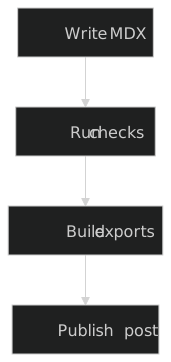
For diagrams, use the existing MermaidGraph MDX component instead of a raw fenced block. The page renders an image version and the export pipeline keeps the Mermaid source in annexes and download artifacts. The component body must contain exactly one fenced mermaid block and nothing else.
<MermaidGraph
  title="Content pipeline overview"
  fileBaseName="content-pipeline-overview"
>

```mermaid
flowchart TD
A[Write MDX] --> B[Run checks]
B --> C[Build exports]
C --> D[Publish post]
```

</MermaidGraph>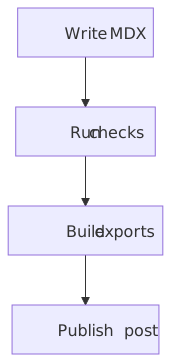
Vega-Lite graphs
Use VegaLiteGraphComponent when you want a chart defined by JSON instead of a Mermaid diagram. The build generates the SVG up front, the download links stay stable under /downloads/graphs/..., and interactive charts can still upgrade in the browser when needed.
<VegaLiteGraphComponent
  title="Quarterly revenue"
  fileBaseName="quarterly-revenue"
  delivery="interactive"
  upgradeOn="hover"
>

```json
{"description":"Quarterly revenue","data":{"values":[{"quarter":"Q1","revenue":12,"team":"North"},{"quarter":"Q2","revenue":18,"team":"South"},{"quarter":"Q3","revenue":15,"team":"East"},{"quarter":"Q4","revenue":22,"team":"West"}]},"mark":"bar","encoding":{"x":{"field":"quarter","type":"ordinal","title":"Quarter"},"y":{"field":"revenue","type":"quantitative","title":"Revenue"},"tooltip":[{"field":"quarter","type":"ordinal","title":"Quarter"},{"field":"revenue","type":"quantitative","title":"Revenue"},{"field":"team","type":"nominal","title":"Team"}]}}
```

</VegaLiteGraphComponent>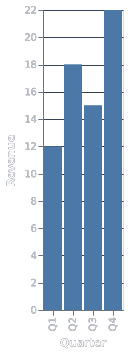
Pass the Vega-Lite JSON as the component body. That is the only supported authoring path and keeps the export pipeline deterministic. When you add a tooltip encoding, the chart becomes interactive and can upgrade from the static SVG into a hoverable Vega runtime on the page.
Collapsible sections
When you want a compact optional section, use native HTML details and summary. That works on the website without a custom component and keeps the source easy to read.
<details>
  <summary>Show the publishing checklist</summary>

- Run `bun run cites:check`.
- Run `bun run check:articles`.
- Preview the post before publishing.

</details>
Show the publishing checklist
- Run
bun run cites:check. - Run
bun run check:articles. - Preview the post before publishing.
Tab groups
Use TabGroup with TabElement children when you want one compact UI block with multiple views. The default website behavior is CSS-first: all normal tabs are server-rendered, the tab bar stays horizontal, and only the selected panel is visible. When a tab contains heavier content, set renderMode="visible-only" so the page only hydrates that tab when the group is visible and the tab is selected.
Each TabElement can also choose how it appears in generated exports:
markdownExport="inline|annex|omit"typstExport="inline|annex|omit"epubExport="inline|annex|omit"
Use inline when the tab content should appear in the main exported article, annex when it should move to the annex section, and omit when that export format should skip it completely.
<TabGroup id="mdx-tab-demo" ariaLabel="MDX tab examples">
  <TabElement group="mdx-tab-demo" label="Inline summary" defaultSelected markdownExport="inline" typstExport="inline" epubExport="inline"><p>This tab stays inline everywhere and works well for concise prose.</p></TabElement>
  <TabElement group="mdx-tab-demo" label="Nested tabs" markdownExport="annex" typstExport="inline" epubExport="annex">
    <TabGroup id="mdx-nested-demo" ariaLabel="Nested tab examples">
      <TabElement group="mdx-nested-demo" label="Nested inline" defaultSelected markdownExport="inline" typstExport="inline" epubExport="inline"><p>Nested tab groups work inside parent tab panels.</p></TabElement>
      <TabElement group="mdx-nested-demo" label="Nested omitted" markdownExport="omit" typstExport="annex" epubExport="omit"><p>This nested tab is omitted from Markdown and EPUB, but moved to the Typst annex.</p></TabElement>
    </TabGroup>
  </TabElement>
  <TabElement group="mdx-tab-demo" label="Lazy heavy panel" renderMode="visible-only" markdownExport="omit" typstExport="annex" epubExport="inline">
    <MermaidGraph
      title="Tabbed export demo"
      fileBaseName="tabbed-export-demo"
    >

```mermaid
flowchart LR
A[Author MDX] --> B[Render tabs]
B --> C[Flatten exports]
C --> D[Publish article]
```

</MermaidGraph>
  </TabElement>
</TabGroup>This tab stays inline everywhere and works well for concise prose.
Nested tab groups work inside parent tab panels.
This nested tab is omitted from Markdown and EPUB, but moved to the Typst annex.


Listing specific posts
When you want to spotlight a few posts, use the PostSummaries MDX component with explicit post paths. This keeps the list curated instead of depending on tags or recency.
<PostSummaries
  posts="/posts/examples/external-links|/posts/examples/writing-posts-example"
/>.-

Sample MDX article with external links and a YouTube header
A sample article that demonstrates external reference links, citations, and a YouTube video header.
-
Writing posts with MDX
A practical guide to frontmatter, Markdown, MDX components, citations, footnotes, checks, and generated exports in this blog.
LaTeX and Typst equations
This blog now supports native Typst math in articles through the TypstMath MDX component. That keeps the website rendering and the exported .typ/.pdf output aligned because the source formula is already written in Typst syntax.
Use inline for short expressions inside prose and the block form for standalone formulas:
Inline math like <TypstMath inline>sum_(i = 1)^n i</TypstMath> works in prose.

<TypstMath>
sum_(i = 1)^n i = n (n + 1) / 2
</TypstMath>
Inline math like works in prose, and block formulas render as display math on the page.
Markdown and EPUB exports degrade these formulas to readable Typst source, while Typst and PDF exports preserve the formula natively. That means the same MDX source still generates clear .md, .epub, .typ, and .pdf outputs [2].
When a post has citations, the generated exports also write a matching .bib file under temp/generated/citations/<slug>.bib. The generated markdown frontmatter points at citations/<slug>.bib, and the download page exposes that file under the generated downloads URL, alongside the .typ and .pdf artifacts.
Checks and helper scripts
The writing workflow lives in code/, even when you only edit content.
cd code
bun run sync:content
Use bun run sync:content when the app cannot see the latest files from content/.
The citation tools are the most important helper scripts in this repo.
cd code
bun run cites:check
bun run cites:transform_inline
bun run cites:generate
bun run cites:checkvalidates reference-link usage,bibliographyData, id formats, URL matches, missing bibliography entries, unused entries, and cross-file cite consistency.bun run cites:transform_inlineconverts inline markdown links into reference-link form.bun run cites:generatehelps migrate links into bibliography entries and per-file citation data.
Use the broader article and markdown checks when you change structure or add new MDX.
cd code
bun run check:articles
bun run imagecomparison:check:unique
bun run check:diagram
bun run mermaid:check:unique
bun run test:cites
bun run test:markdownlint
bun run check:articlesvalidates article-specific rules.bun run imagecomparison:check:uniquevalidatesImageComparisonimage ids directly and also runs insidecheck:articles.bun run check:diagramvalidates Mermaid and Vega-Lite component authoring shape.bun run mermaid:check:uniquecatches conflicting Mermaid diagram titles.bun run test:citesruns the citation, MDX export, Mermaid, and download tests.bun run test:markdownlintcovers both the custom markdown rules and standard markdownlint checks.
A practical citation checklist.
- Use reference links, not inline links.
- Add
bibliographyDatawhenever the post contains citations. - Keep
cite:entries sorted alphabetically. - Use
self:ids for same-page links andinternal:ids for cross-article citations. - Use
note:footnote ids.
Quick Troubleshooting Checklist
If a post fails validation, check these items first.
- Make sure every reference-style link has a matching definition.
- Confirm every cited external source appears in
bibliographyData. - Run
bun run sync:contentif the app is not seeing fresh content edits. - Re-run
bun run cites:checkbefore debugging downstream build output.
Generated Markdown, Typst, PDF, and EPUB
This repo generates several download formats from the same source article.
- Markdown is useful when you want a cleaned export of the article text.
- Typst is the intermediate typesetting format used by the document pipeline.[2]
- PDF is produced from Typst output.
- EPUB is the ebook-friendly export format used for readers and archive copies.[4]
You can build them directly from code/.
bun run build:generate:markdown
bun run build:generate:typst
bun run build:generate:pdf
bun run build:generate:epub
Or run the full site build.
bun run buildFor normal writing, the important thing to remember is that exports transform the article. Reference links, citations, footnotes, Mermaid diagrams, and supported MDX components are all preserved by the pipeline, which is why it is worth running the checks before publishing.